Junk Eraser - Storage Manager
- 4.3
- Rating
- 5.00M
- Installs
- Free
- Price

 Analysis by App-foxy
I tried Junk Eraser - Storage Manager as a straightforward Android tool for dealing with the small, annoying buildup that makes a phone feel crowded. Its purpose is easy to understand: find removable junk, help clear cache, and make room without turning storage maintenance into a technical project. That simplicity is its strongest point, but it also means you need to know what kind of cleanup it can realistically handle before expecting it to solve every storage problem.
Developed by FRODO VENTURES LIMITED, this free app sits in the tools category and is suitable for everyone. It has reached over a million installs and holds a 3.9 average from around 1.3 thousand ratings, so it has clearly attracted a sizable audience while leaving room for mixed experiences. I see it as a convenient first step for ordinary Android cleanup, not as a complete replacement for the phone’s own storage controls.
Getting past the first points of friction
The first place people can get stuck is the difference between scanning and actually reclaiming space. An app can identify temporary material, but the final cleanup may still depend on what Android allows and on which items are safe to remove. I found it useful to approach the scan as an inspection rather than pressing every cleanup option automatically. That small change prevents the common mistake of treating every file presented by a storage tool as disposable.
You May Also Like

 Blood Strike: 2.5 Anniversary
Blood Strike’s Loadouts Turn Every Drop Into a Tactical Gamble
A close look at Blood Strike’s custom loadouts: how fast access to signature weapons reshapes its battle royale rhythm, rewards preparation, and narrows the gap between fights.

 Pandora - Music & Podcasts
Pandora’s Music Is Easy to Start, but Harder to Recover
Pandora’s strength is its low-effort path from a seed to a station. Its weak spot is how much confidence it asks you to place in connection, setup, and quiet recovery.

 8 Ball Pool
 Is Built on Rivalries, Rematches, and Routine
A close look at the rivalries, rematches, shared routines, and unanswered safety questions that turn a quick pool match into a persistent mobile community.

 Samsung Music
’s Quiet Strength Is Playing What You Already Own
Its reach comes less from spectacle than from dependable access to a personal library. That simplicity is both the app’s strongest retention engine and its ceiling.

 AccuWeather: Weather Radar
AccuWeather Review: A Quick, Clear Forecast for Everyday Decisions
For everyday plans, the best forecast is the one you can understand quickly. AccuWeather makes rain timing, radar, and local conditions easy to act on, with a few trade-offs.

 Hill Climb Racing
Why Hill Climb Racing Still Turns Crashes Into One More Run
A tiny car, a bumpy hill and one more upgrade: Hill Climb Racing keeps resurfacing because its simple chaos makes every near-miss feel personal.
More From Our News Desk



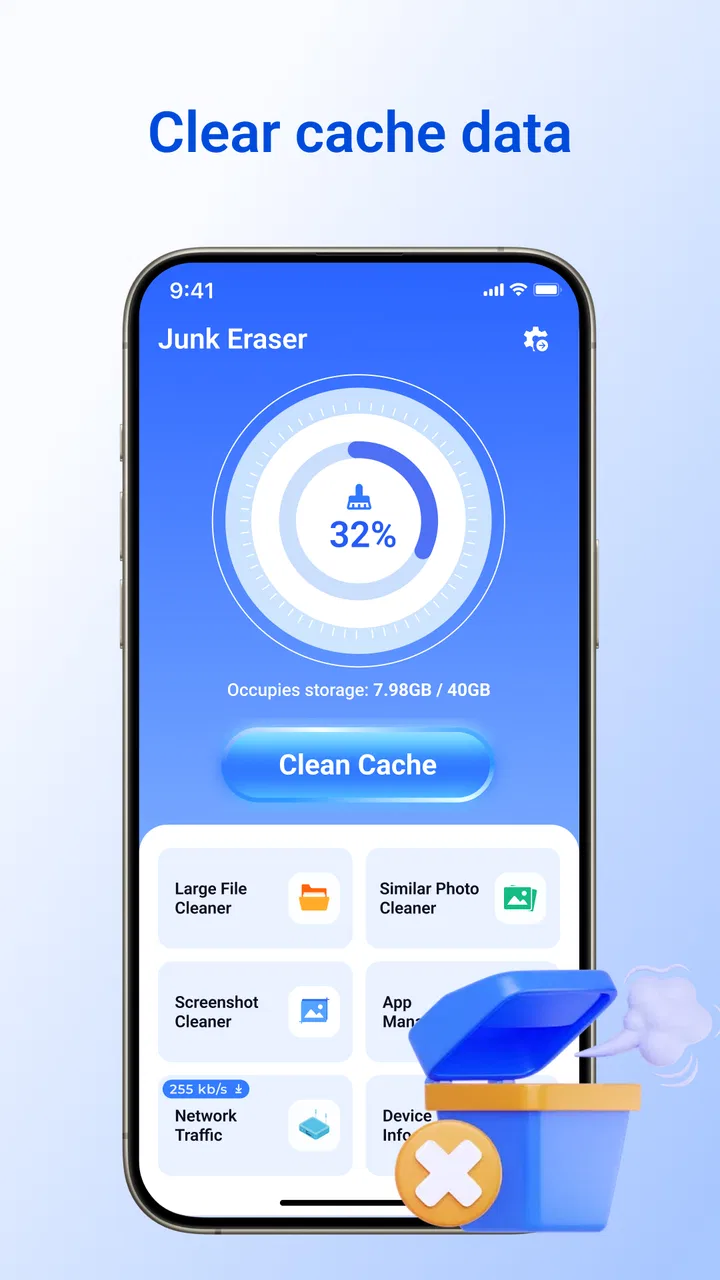
The app’s store summary focuses on tapping to remove cache and free space, which makes it approachable for someone who does not want to browse folders manually. In everyday use, that is a sensible role: open it when the phone is warning about low space, review what it highlights, and then clean only what you recognize as temporary. The experience is less suitable for someone who wants detailed file management, duplicate-photo review, or a full explanation of every folder on the device.
My first practical recommendation is to close demanding apps before running a cleanup. If a video editor, browser, game, or messaging app is still active, its temporary files may be changing while the scan is underway. That can make the result look inconsistent. A fresh scan after closing those apps gives you a cleaner picture and avoids judging the tool by a moving target.
Another useful habit is to check available storage before and after cleaning through Android’s own settings. This is not because the app is necessarily wrong; storage figures can take a moment to refresh, and Android may calculate categories differently from a third-party cleaner. If the number does not change immediately, wait briefly, reopen the system storage view, and compare again. That simple check is more reliable than assuming a button press must produce a dramatic result.
Setup checks that prevent confusing results
Junk Eraser - Storage Manager is listed for Android 8.0 and later, so compatibility should be straightforward on supported devices. Still, Android manufacturers often alter their storage screens and background behavior. A phone with an aggressive battery manager may pause or close an app during a scan, while a heavily customized interface may display storage totals in a way that does not match the cleaner’s presentation.
If the scan seems to stop, I would first reopen the app and try again with the phone unlocked and connected to a stable power source. I would also avoid switching rapidly between several apps while it works. These are ordinary troubleshooting steps, but they matter because a cleanup tool is more likely to appear unreliable when the operating system is limiting background activity.
Keep the application itself current as well. The current version is 1.0.7, and using the installed version shown on your device helps rule out a basic mismatch when following instructions or comparing behavior. I would not install several cleaners at the same time to “boost” the result. They may inspect the same temporary areas, produce overlapping recommendations, and make it harder to know which change actually helped.
The safest setup mindset is conservative. Before confirming a cleanup, read the category or description shown in the app and leave anything you are unsure about alone. Cache is normally temporary, but a user may still prefer to keep certain cached material to avoid waiting for it to load again. Clearing it can also mean that an app rebuilds local data the next time it opens, so a short-term increase in loading time is not automatically a failure.
I also recommend doing the first scan when you are not about to record a video, travel with offline maps, or open an important work app. Storage maintenance is better handled as a calm housekeeping task. If the phone is already under pressure, rushing through a cleanup can lead to deleting something you intended to keep or misreading a temporary delay as a serious problem.
A recovery workflow when cleanup appears stuck
When the app does not seem to finish, I would use a simple recovery sequence rather than repeatedly tapping the same control. Stop the scan if the interface offers that option, leave the app, and reopen it. Then run a smaller, more deliberate check with other heavy apps closed. If the result still looks frozen, restart the phone and try once more. This sequence separates a temporary Android process issue from a repeatable problem inside the app.
If the available-space figure changes but the app still shows an old result, treat the stale display as a refresh problem first. Reopening the storage screen or rescanning is more sensible than repeating the deletion several times. Repeated cleanup attempts are unlikely to create extra space and may only make the process feel more alarming.
There is also a useful recovery distinction between a failed scan and a small result. A small amount of removable material does not mean the application failed. It may simply mean the phone is already reasonably tidy, or that the largest storage consumers are personal files and installed applications rather than temporary cache. In that situation, the right next step is Android’s storage settings, where you can inspect larger categories directly.
For a phone that becomes full again almost immediately, I would look for the source before blaming the cleaner. A chat app may be receiving large media, a camera may be saving high-resolution recordings, or a streaming service may be keeping offline content. Junk Eraser can be useful for the residue around those activities, but it cannot turn a continuously growing media library into permanent free space.
One of the more practical workflows is to use the app after a specific storage-heavy event, not on a rigid schedule. For example, after removing a large batch of downloaded files, I would run a scan to catch temporary leftovers, then verify the result in system storage. This gives the tool a defined job and makes it easier to tell whether it helped. Running it repeatedly without a storage problem can encourage unnecessary cleaning with little benefit.
When the real problem is somewhere else
It is important not to confuse low storage with slow performance. A phone can feel sluggish because of an aging battery, an overloaded home screen, a demanding app, poor network conditions, or limited memory. Clearing cache may help in a narrow situation, but it is not a universal speed repair. If the device remains slow after storage is under control, I would investigate the individual app or the Android system rather than expecting a junk cleaner to fix it.
The same applies to battery drain. A cleanup tool may remove temporary files, but it does not explain why a social app, navigation service, or background process is using power. For battery complaints, Android’s battery screen is usually a better starting point because it identifies consumption by app. Using the right diagnostic tool saves time and avoids deleting data that was unrelated to the original problem.
If photos, documents, or recordings are taking most of the space, a dedicated file manager or cloud-backup workflow is a better match. The key trade-off is control: a file manager lets you decide exactly what leaves the phone, while a cache-focused tool is faster for temporary material. I prefer the latter for quick housekeeping and the former when the storage problem involves personal files that I need to organize carefully.
People who regularly install large games may also find that this app is not the complete answer. The largest gain may come from uninstalling a title that is no longer used, moving media to another location, or removing downloaded content inside the app that created it. A cleaner is convenient when the waste is scattered and temporary; it is less useful when the storage is occupied by deliberate, valuable content.
Privacy-conscious users should also take a measured approach to any cleaning utility. I would review the screens presented during setup and cleanup, avoid granting anything that is not clearly needed for the task, and use Android’s own controls when I want maximum visibility. That is not a criticism unique to this application. It is simply good practice whenever a tool is being used to inspect device storage.
Who will get the most from it
I think this app is best for someone who wants a quick, uncomplicated way to check temporary clutter without learning Android’s folder structure. It can be especially handy on a shared family phone, an older device with limited free space, or a handset used for messaging and browsing where cache gradually accumulates. The everyone age rating also makes its positioning clear: it is presented as a general-purpose utility rather than a specialist technical instrument.
A realistic example would be a commuter whose phone is nearly full after weeks of browsing, messaging, and downloading attachments. Instead of opening folders one by one, that person can use the app as an initial cleanup pass, review the suggested temporary material, and then confirm the storage change through Android. If the warning remains, the next move should be finding large personal files, not running the same cleanup again and again.
I would be more cautious recommending it to an advanced Android user who wants granular control over application data, folder paths, duplicate files, or backup decisions. That person may prefer the built-in storage manager or a full file-management app because those tools make the source of the space usage more explicit. Junk Eraser’s appeal is speed and simplicity, and those qualities naturally come with less detailed control.
There is also a trade-off for users who dislike interruptions or visual clutter in utility apps. A free tool may feel less focused than a system setting, depending on how its screens are arranged on a particular device. I would judge it by whether the cleanup path is clear and whether the results can be verified afterward. If the interface makes you uncertain about what will be removed, the phone’s own storage screen is the safer choice.
My practical verdict after using it
Junk Eraser - Storage Manager is a reasonable first-line tool for temporary storage cleanup. I like that its purpose is narrow and understandable: open it, inspect the clutter it identifies, remove what is clearly disposable, and verify the result. Its free price lowers the barrier for occasional use, while the million-plus install base suggests it is not an obscure experiment. The 3.9 average also sets a fair expectation: useful for many people, but not a flawless solution for every phone or storage problem.
The most important limitation is not a missing button; it is the boundary of the category. Cache cleanup cannot replace file organization, application management, backup, or diagnosis of performance and battery issues. If you remember that boundary, the app makes more sense. Use it for a quick maintenance pass, then move to Android’s own settings when the storage is being consumed by large or important files.
My recommended routine is deliberately modest. Run a scan after closing active apps, review the proposed cleanup instead of accepting it blindly, give Android a moment to refresh, and compare the result in system storage. If the phone fills again, identify the growing category rather than repeating the same action. This workflow gets more value from the app while reducing the chance of treating normal storage behavior as a malfunction.
For me, the deciding question is whether you want convenience or control. If convenience wins, this free tools app is worth trying on a supported Android phone, especially when you need a quick cache check before deleting personal files. If control wins, start with the built-in storage manager or a dedicated file manager. Junk Eraser works best as a cautious cleanup assistant, not as a magic button for every low-storage warning.
With version 1.0.7 and support beginning at Android 8.0, it is accessible to a broad range of compatible devices. I would recommend it to casual users who want a simple maintenance step and to anyone willing to verify what changes afterward. I would skip it when the real issue is large media, offline downloads, battery drain, or the need for detailed file-by-file decisions.
FAQs for Junk Eraser - Storage Manager
01What is Junk Eraser - Storage Manager used for?
Junk Eraser - Storage Manager is designed to optimize your device's performance by removing unnecessary files and clutter. It scans for cached data, residual files, and temporary files that can slow down your phone. By cleaning these, the app helps free up storage space, potentially improving your device's speed and efficiency.
02How does Junk Eraser handle personal data and privacy?
Junk Eraser - Storage Manager prioritizes user privacy by ensuring that no personal data is accessed or shared. The app strictly scans for junk files and system cache, not personal files or sensitive information. It complies with data protection regulations and provides clear privacy policies for users to review before installation.
03Is Junk Eraser - Storage Manager compatible with all Android and iOS devices?
Junk Eraser is compatible with most Android and iOS devices. However, to ensure optimal performance, it is recommended that your device runs on Android version 5.0 or above, or iOS 11.0 or later. The app regularly updates to support newer devices and operating systems, enhancing compatibility and functionality.
04Are there any in-app purchases or ads in Junk Eraser?
Junk Eraser offers a free version with essential features, but it may contain ads to support its development. For an ad-free experience and access to premium features, users can opt for in-app purchases. These purchases provide enhanced capabilities, such as deeper scans and advanced cleaning options.
05How often should I use Junk Eraser to maintain my device's performance?
For optimal results, it is recommended to use Junk Eraser at least once a week. Regular cleaning helps maintain your device’s performance by removing accumulating junk files. You can also enable notifications for reminders based on your usage patterns, ensuring your device remains clutter-free.
Pros
- Efficiently clears cache and junk files.
- Simple and user-friendly interface.
- Boosts device performance effectively.
- Offers customizable cleaning options.
- Lightweight and doesn’t drain battery.
Cons
- Contains intrusive ads in free version.
- Limited features without subscription.
- Some features may overlap with OS.
- Occasional false positives on files.
- No cloud backup for deleted files.

Junk Eraser - Storage Manager
Gallery